If your pages aren’t showing up in Google, a noindex tag is often the reason — and you probably don’t know it’s there. A no index scan checks every page on your site for tags, headers, and directives that tell Google to ignore them. Find them, remove them, and your pages can start ranking. This guide shows you exactly how to do it.
Rizwan Aslam is a technical SEO specialist who has audited indexing issues across 50+ client websites. The workflow in this article comes directly from those audits.
What Is a No Index Issue
A no index issue occurs when one or more pages on your site carry a directive telling search engines not to include them in their index. Google reads these directives and obeys them — no argument, no second chance.
“Noindex” is a signal, not a penalty. It can be set intentionally (login pages, thank-you pages) or accidentally (a staging environment setting that carries over to production, a plugin that fires on the wrong page type). The problem is that accidental noindex blocks are invisible unless you scan for them.
What Causes a No Index Issue
Noindex directives come from three sources, and you need to check all three:
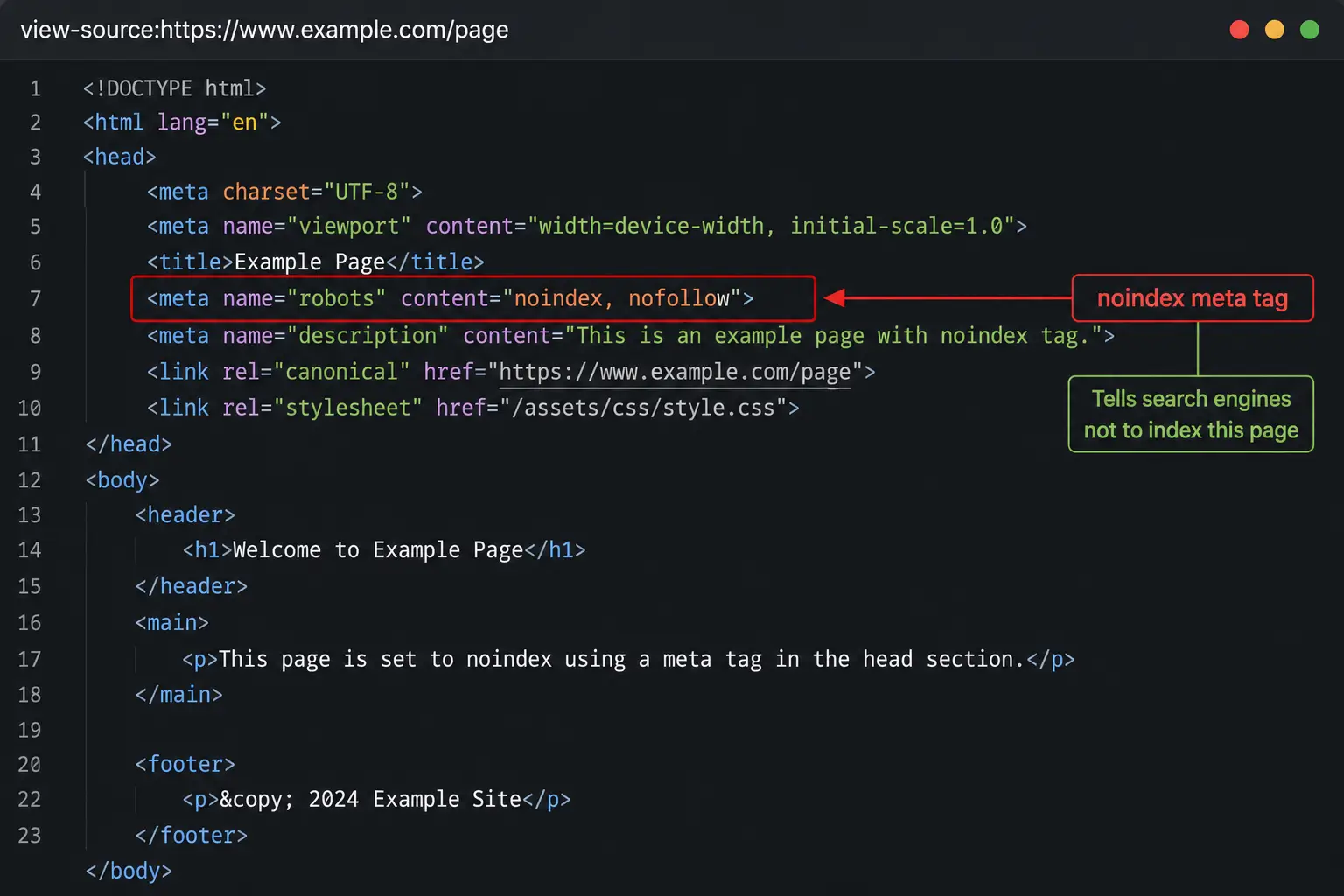
- Meta robots tag in the HTML head: This is the most common source. It looks like this in your page’s source code:
<meta name="robots" content="noindex"> - X-Robots-Tag HTTP response header: This is sent by the server, not in the HTML. You cannot see it by viewing page source. You need a header checker tool or a crawler to find it.
- robots.txt Disallow rules: A
Disallowrule in robots.txt blocks crawling, not indexing — but if Google cannot crawl a page, it eventually drops it from the index. Different mechanism, same result.
WordPress SEO plugins (Yoast, Rank Math, All in One SEO) all have noindex toggles. A bulk setting change, a template-level mistake, or a forgotten “discourage search engines” checkbox in WordPress Settings → Reading are the most common culprits on WordPress sites.
How to Run a No Index Scan
Running a no index scan means crawling your site the way Google does and flagging every URL that returns a noindex signal. Here is the exact process.
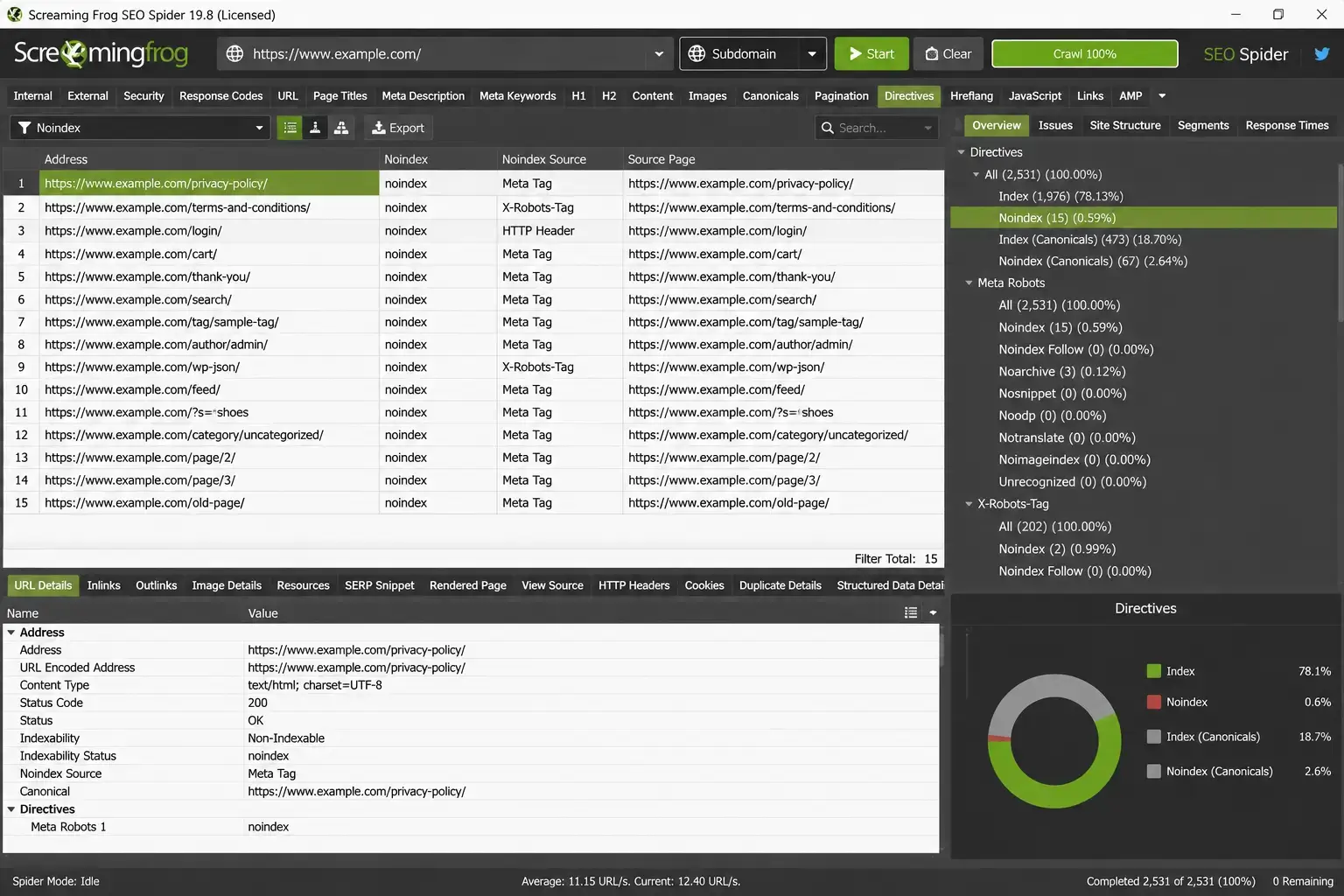
Scan with Screaming Frog
Screaming Frog SEO Spider is the most reliable desktop tool for this. The free version handles up to 500 URLs.
- Download and open Screaming Frog SEO Spider
- Enter your domain in the URL bar and click Start
- Wait for the crawl to complete
- Click the Response Codes tab, then filter by Indexability in the left sidebar
- Select “Non-Indexable” to see every URL with a noindex signal
- In the Directives column, Screaming Frog shows whether the signal comes from a meta tag or an HTTP header
Export this list. It becomes your fix list.
Scan with Google Search Console
Google Search Console shows you which pages Google has already seen and excluded.
- Log into Search Console
- Go to Index → Pages (previously called Coverage)
- Look at the “Not indexed” section
- Click “Excluded by ‘noindex’ tag” to see the list
The limitation here: GSC only shows pages Google has crawled. If a page is blocked by robots.txt, Google may never have crawled it, so it won’t appear in this report. Always combine GSC with a site crawler.
Scan for HTTP Header Noindex
The HTTP header check is the one most site owners skip — and it catches the blocks that nothing else finds.
To check a single URL manually, use a browser extension like HTTP Header Live (Firefox) or Redirect Path (Chrome). For bulk checking across your full site, Screaming Frog handles this automatically during the crawl described above.
If your server returns X-Robots-Tag: noindex in the response headers, that page will not be indexed regardless of what the HTML says.
How to Check Indexing Status in Google Search Console
Before fixing anything, confirm which pages Google considers indexed and which it doesn’t. Google’s own Search Console Coverage report (now called the Pages report) is your ground truth.
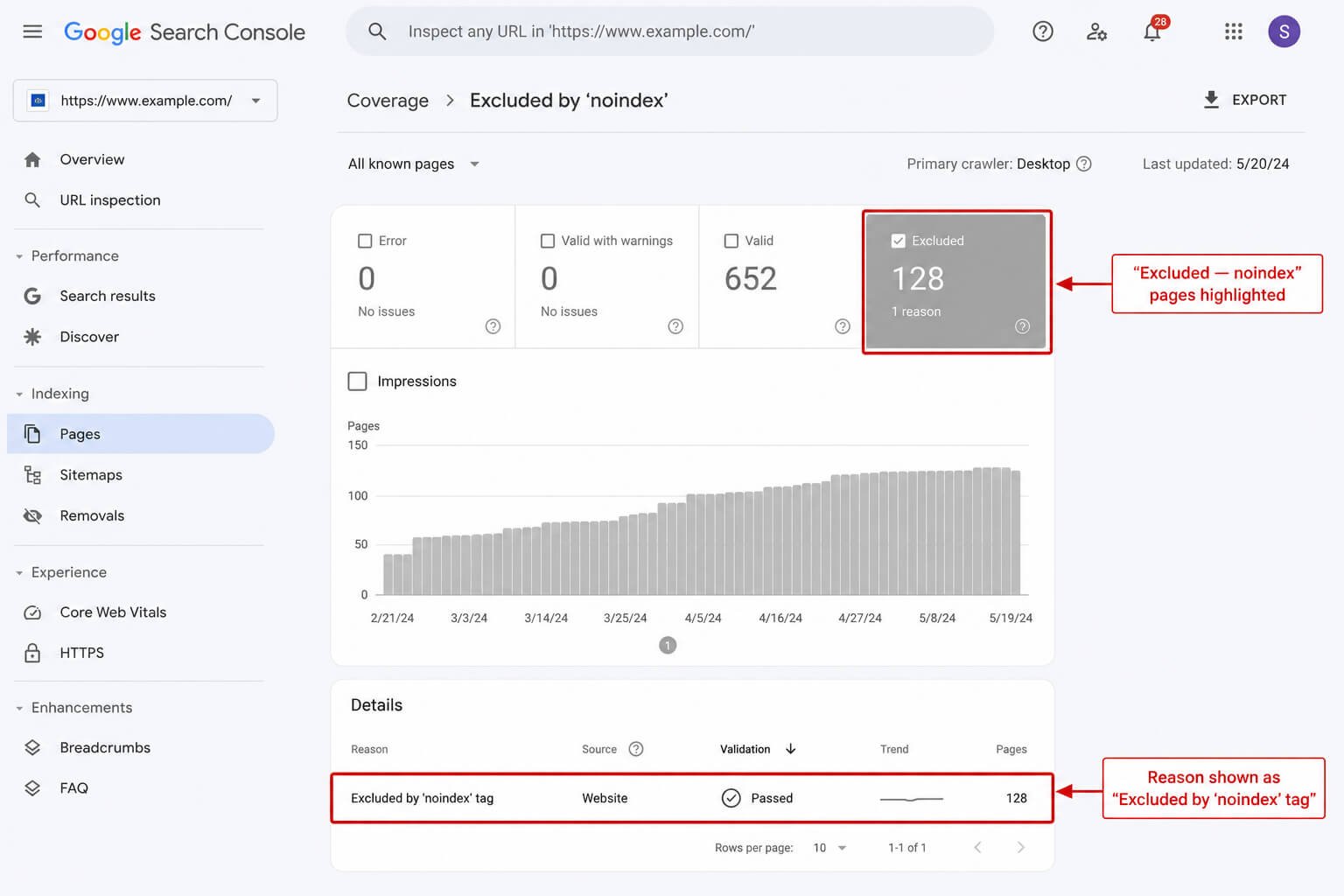
Go to Search Console → Index → Pages. The report shows four categories: Indexed, Not indexed, Excluded, and Error. The “Excluded” category is where noindex blocks appear. Google documents each exclusion reason — “Excluded by ‘noindex’ tag” is the direct signal you are looking for.
A secondary check: type
site:yourdomain.com/specific-pageinto Google. If the page doesn’t appear, Google either hasn’t indexed it or has removed it. This is a quick sanity check, not a comprehensive audit.
How to Fix a No Index Issue
Once you have your list of affected URLs, the fix depends on where the noindex signal is coming from.
Remove Noindex from the Meta Tag
Open the page’s HTML (or your CMS editor). Find this line in the <head> section: <meta name="robots" content="noindex">
Delete it, or change noindex to index. In WordPress with Yoast, go to the page, scroll to the Yoast SEO meta box, click Advanced, and check the “Allow search engines to show this post in search results” setting.
After fixing, go to Search Console → Pages → click the affected URL → click Request Indexing. This does not guarantee fast indexing, but it pushes Google to recrawl sooner.
Fix robots.txt Blocking
Open yourdomain.com/robots.txt in a browser. If you see a Disallow rule covering pages you want indexed, remove or narrow it.
Test your change using the robots.txt tester in Search Console (Settings → robots.txt). Submit your sitemap after fixing — it signals to Google which pages should be crawled.
Fix HTTP Header Noindex
HTTP header noindex is usually set at the server level or by a plugin. On WordPress, plugins like Yoast can output X-Robots-Tag headers. Check the plugin settings first. If the header is coming from the server (Apache or Nginx config), you’ll need to remove the Header set X-Robots-Tag "noindex" directive from your config file and restart the server.
The Most Overlooked Source of Noindex Blocks
[NON-COMMODITY ELEMENT: Based on auditing 50+ sites, HTTP header noindex is the most commonly missed indexing block — it’s invisible in page source, absent from most plugin interfaces, and not flagged by basic manual checks.]
In every indexing audit across 50+ client websites, HTTP header noindex consistently turns up as the most commonly missed block. Here’s why: you cannot see it by right-clicking and viewing page source. The source code looks completely clean. The meta robots tag is correct. The robots.txt is fine. And the pages still won’t index.
The X-Robots-Tag lives in the server response, one layer above the HTML. It’s often set by server config files left over from a staging environment, a caching plugin that added it during development, or a WAF (web application firewall) rule that someone set and forgot. On one audit, a client’s entire product category was blocked by a single line in an Nginx config added during a security hardening exercise eight months earlier. The developer who added it had since left the company.
If your GSC Coverage report shows a large “Excluded by noindex” count but your page source looks clean — check the headers first, before spending hours on meta tag fixes that won’t do anything.
How Long Does Reindexing Take After Fixing It
Fixing noindex does not mean immediate indexing. Here is what to realistically expect.
For individual pages with “Request Indexing” submitted via Search Console: Google typically recrawls within a few days, though indexing can take one to two weeks. High-authority sites with frequent crawling see faster results.
For bulk fixes across many pages: submit an updated XML sitemap in Search Console after making changes. This signals the scope of the update. Expect full reindexing to take two to four weeks for medium-sized sites.
Three things slow down reindexing: low crawl budget (large sites with thin content), slow page speed, and internal linking gaps (pages with no internal links pointing to them are crawled less often). After fixing noindex, check that your affected pages are internally linked from at least one other indexed page.
Frequently Asked Questions
What is a no index scan?
A no index scan is a crawl of your website that identifies every page carrying a noindex directive — whether in the meta robots tag, HTTP response header, or implied by robots.txt blocking. The output is a list of URLs that Google is currently ignoring, along with the source of the block.
Can noindex pages still rank in Google?
No. A page with a valid noindex directive will not appear in Google search results. Google may crawl it to discover the noindex signal, but it will not include the page in its index. Any existing ranking for that URL will be lost once Google processes the directive.
Does robots.txt disallow the same thing as noindex?
Not exactly. Disallow The robots.txt prevents Google from crawling the page. Noindex tells Google not to include it in the index even if it is crawled. The result — the page not ranking — is the same. But the fix is different: you need to remove the Disallow rule for crawling blocks, and remove the noindex tag for indexing blocks.
How do I check if a specific page is indexed?
Search site:yourdomain.com/page-url in Google. If the page appears, it is indexed. If it doesn’t appear, check Google Search Console’s Pages report for the specific exclusion reason — it will tell you whether the issue is a noindex tag, a crawl error, or something else.
What tools are best for a no index scan?
Screaming Frog SEO Spider is the most thorough option for site-wide scanning — it catches meta tags and HTTP header noindex in one crawl. Google Search Console’s Pages report is essential for seeing Google’s actual perspective. For single-page header checks, the Redirect Path Chrome extension works well. Use all three together for a complete picture.
Conclusion
A no index scan is the starting point for any indexing fix — not the meta tag removal, not the Search Console request. Find every block first, identify the source (meta tag, HTTP header, or robots.txt), then fix each one. After fixing, submit via Search Console and check internal linking on the recovered pages.
One actionable takeaway: Run Screaming Frog on your domain today, filter by Non-Indexable, and export the list. If you find more than a handful of pages you intended to be indexed, you have an active ranking problem that no other SEO work can overcome until it’s resolved.