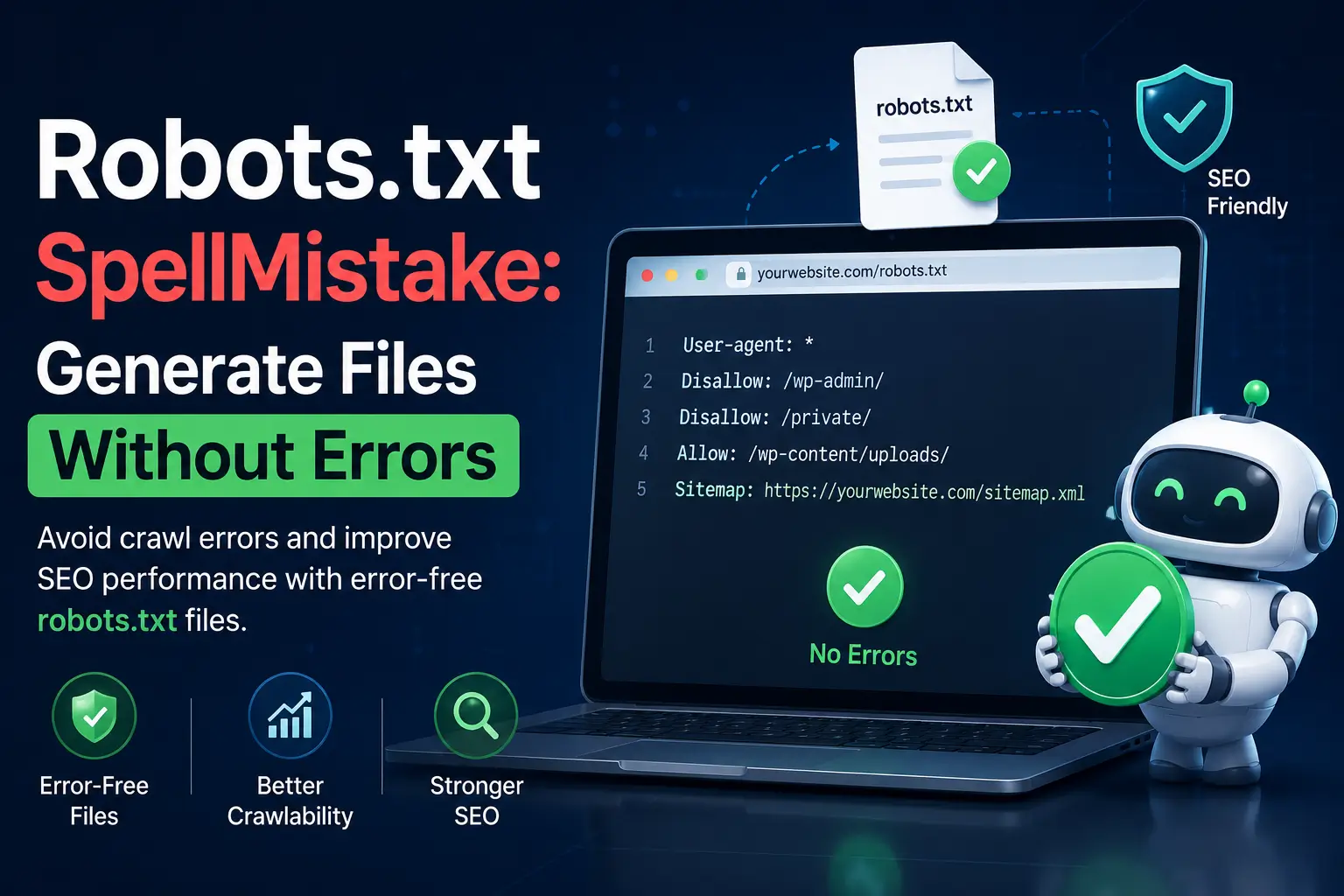
A single spelling mistake in your robots.txt file can block Google from crawling your entire site — and it won’t tell you. No error message, no ranking alert, no warning in Search Console until the damage is already done. This guide shows you the exact mistakes that break robots.txt silently, and how to generate a correct file from scratch.
What Is a Robots.txt File and What Can Go Wrong
A robots.txt file is a plain text file at the root of your domain that tells search engine crawlers which pages they can and cannot access. Google, Bing, and other crawlers check it before crawling anything else on your site.
The file has no error handling. If you write a directive incorrectly — wrong capitalisation, extra whitespace, a misplaced slash — the crawler either ignores the rule entirely or misreads it. It does not warn you. It just crawls (or doesn’t crawl) based on what it parsed, not what you intended.
That silent failure is what makes robots.txt mistakes more dangerous than most technical SEO errors.
Common Robots.txt Spelling and Syntax Mistakes
These are the errors that appear repeatedly in real-site audits. Each one looks almost correct, which is exactly why they slip through.
Wrong Capitalisation on Directives
Robots.txt directives are case-sensitive. The correct forms are:
User-agent: *
Disallow: /private/
Allow: /public/
Sitemap: https://yourdomain.com/sitemap.xml
Common mistakes:
user-agent: *          ← lowercase u — ignored by some crawlers
disallow: /private/    ← lowercase d — may be ignored
DISALLOW: /private/    ← all caps — invalid
Google’s crawler is forgiving on this specific point and accepts lowercase. But Bing and others are not. If you are writing a robots.txt that needs to work across all crawlers, match the capitalisation exactly: User-agent, Disallow, Allow, Sitemap — first letter capitalised, rest lowercase.
Extra Spaces After Colons or URLs
This one is invisible to the human eye and breaks rules silently.
Disallow: /private/    ← correct
Disallow:  /private/   ← extra space before the path — rule may be misread
Disallow: /private/ /  ← trailing space or slash — unintended match
Robots.txt parsers are literal. An extra space after the colon can cause some parsers to treat the space as part of the path, meaning the rule matches nothing. One client’s audit revealed a Disallow: (with a trailing space and no path) That was supposed to allow full crawling — instead it was being parsed inconsistently across different bots.
Missing or Misplaced Slash in Disallow
The slash placement in Disallow rules controls exactly what gets blocked.
Disallow: /private/    ← blocks /private/ and everything inside it
Disallow: /private     ← blocks /private AND /private-something — unintended
Disallow: private/     ← missing leading slash — likely ignored entirely
Disallow: //private/   ← double slash — unintended match behaviour
A missing leading slash is the most common variant. Most crawlers require the path to start with /. Without it, the rule is treated as malformed and skipped.
Blocking the Wrong User-Agent
User-agent: googlebot    ← wrong — should be Googlebot (capital G)
User-agent: Google       ← wrong — not a valid user-agent string
User-agent: *            ← correct wildcard for all crawlers
User-agent: Googlebot    ← correct for Google specifically
If you misspell the user-agent name, the rules under it apply to nothing. A block intended for Googlebot-Image that’s written as User-agent: googlebotimage (no hyphen) silently fails. Google will crawl your images regardless.
Valid Googlebot user-agent strings include: Googlebot, Googlebot-Image, Googlebot-Video, AdsBot-Google. Anything else is not recognised.
Forgetting the Blank Line Between User-Agent Blocks
Each rule block in robots.txt must be separated by a blank line. Without it, crawlers may merge the blocks and misapply rules.
Correct:

User-agent: Googlebot
Disallow: /staging/

User-agent: Bingbot
Disallow: /internal/


Broken (no blank line):

User-agent: Googlebot
Disallow: /staging/
User-agent: Bingbot
Disallow: /internal/
In the broken version, some parsers treat both user-agent lines as belonging to one block and apply both Disallow rules to both crawlers. Others stop parsing at the second User-agent line and ignore everything after it.
How to Generate a Robots.txt File That Works
Generating a correct robots.txt file takes less than five minutes if you follow the format exactly.
Manual Generation: The Correct Format
A minimal, correct robots.txt for a standard site that wants full crawling:
User-agent: *
Allow: /

Sitemap: https://yourdomain.com/sitemap.xml
A robots.txt that blocks one directory and allows everything else:
User-agent: *
Disallow: /wp-admin/
Allow: /wp-admin/admin-ajax.php

Sitemap: https://yourdomain.com/sitemap.xml
Rules to follow when writing manually:
- Start every file with a
User-agent:line - Follow it immediately with at least one
Disallow:orAllow:line - Leave a blank line between each user-agent block
- Put your
Sitemap:directive at the end, outside any user-agent block - Use UTF-8 encoding with Unix line endings (LF, not CRLF) — Windows Notepad saves CRLF by default, which can cause parsing issues
Using a Robots.txt Generator Tool
If you’d rather not write it manually, several tools generate syntactically correct robots.txt files:
- Yoast SEO (WordPress): Go to SEO → Tools → File Editor. Yoast generates and manages your robots.txt directly. It validates syntax automatically before saving.
- Screaming Frog: In the software, go to Tools → Generate Robots.txt. It outputs a correctly formatted file based on your crawl data.
- Google’s Search Console robots.txt tester is not a generator, but it validates your existing file, which makes it the essential second step after generating, regardless of which tool you use.
The risk with generators: they produce correct syntax, but they cannot know your site’s structure. Always review the output before uploading. A generator that adds Disallow: / Because you ticked the wrong checkbox will block your entire site with perfect syntax.
The Silent Failure Problem
NON-COMMODITY ELEMENT: Based on Multiple client audits, robots.txt errors are uniquely dangerous because they produce no visible failure signal — the site runs, rankings may appear stable for weeks, and the damage only surfaces when a ranking drop triggers an investigation.
In every category of technical SEO error, robots.txt mistakes are the hardest to catch — not because they’re complex, but because nothing breaks visibly when they happen. A 404 error shows in Search Console. A slow page speed shows in Core Web Vitals. A missing canonical tag shows in a crawl report.
A robots.txt typo shows nothing. Your site loads fine. Google keeps making requests. The crawler hits your robots.txt, misreads the Disallow: /product (trailing space) as a non-matching rule, and crawls your product pages — or hits Disallow: / and stops crawling everything. Both outcomes look the same from the outside for days or weeks.
The specific mistake that has appeared most often across client audits: Disallow: with no path, preceded by a space. It was intended as a “do not block anything” directive. In most parsers, Disallow: with no path means exactly that — allow everything. But Disallow: with a trailing space is parsed differently by different bots, creating inconsistent crawl behaviour that takes weeks to trace back to a single invisible character.
The fix is not vigilance. It is testing, every time, before the file goes live.
How to Test Your Robots.txt Before Publishing
Google provides a robots.txt tester directly in Search Console. Use it before every upload.
- Go to Google Search Console
- Navigate to Settings → robots.txt (or search “robots.txt tester” in the search bar within GSC)
- Paste your robots.txt content into the tester
- Enter specific URLs you want to check — both URLs that should be crawlable and ones that should be blocked
- The tester shows whether each URL is allowed or blocked under your current rules
- Fix any mismatches before uploading the file
Google’s robots.txt tester validates against Googlebot’s parser specifically. It will catch capitalisation issues, path matching errors, and blank-line problems. It will not catch logical errors — if you meant to block /staging/ but wrote /staging Instead, the tester will confirm that both rules are syntactically valid. Whether they block what you intended is your responsibility to verify by testing actual URLs.
For additional validation, use the free robots.txt validator at technicalseo.com — it flags issues the GSC tester doesn’t surface, including multiple User-agent declarations without separating blank lines.
Robots.txt Rules Google Actually Enforces
Google’s robots.txt implementation follows the Robots Exclusion Protocol, but with some documented differences from the standard. Knowing these prevents rules that work in theory but fail in practice.
- Google ignores
Crawl-delay: Many robots.txt guides recommendCrawl-delay: 10slowing down aggressive crawlers. Google’s documentation explicitly states it does not support this directive. Use Search Console’s crawl rate settings instead. - Google does support
Allow: TheAllowdirective is not part of the original protocol, but Google, Bing, and most modern crawlers support it. Use it to whitelist specific paths inside a broader Disallow. - Pattern matching with wildcards (
*) is supported:Disallow: /*.pdf$blocks all PDF URLs.Disallow: /search?blocks all search query pages. Google supports these patterns; not all crawlers do. - Conflicting rules: the most specific wins. If you have
Disallow: /private/andAllow: /private/document.pdf, Google allows the PDF. The longer (more specific) match takes precedence. - Google caches your robots.txt: Google fetches and caches your robots.txt periodically — roughly every 24 hours, sometimes longer. A change you upload today may not be reflected in Googlebot’s behaviour for up to a day. If you need immediate effect, use the URL Inspection tool in Search Console to request a fresh fetch.
Frequently Asked Questions
What happens if my robots.txt has a spelling mistake?
It depends on the mistake. A misspelled directive (e.g. Disalow instead of Disallow) is typically ignored by the crawler — meaning the rule has no effect, and the crawler proceeds as if the line doesn’t exist. A misspelled user-agent means the rules under it apply to no crawler. A path error (missing slash, extra space) can either block the wrong URLs or fail to block the right ones. None of these produces an error message.
Does robots.txt affect SEO directly?
Robots.txt controls crawling, not indexing. A page blocked in robots.txt can still be indexed if other sites link to it — Google can infer its existence from links without crawling it. For pages you want removed from the index, use a noindex meta tag instead of robots.txt.
Can I use robots.txt to block specific pages?
Yes, but it is not the right tool for preventing indexing. Use Disallow in robots.txt to prevent crawling of pages that consume crawl budget (duplicate parameter URLs, internal search results, session IDs). For actual de-indexing, use the noindex meta tag. Using robots.txt to block a page you want de-indexed is a common mistake — the page can still be indexed via external links.
How do I know if my robots.txt is blocking Google?
Check Google Search Console → Index → Pages. Look for URLs in the “Not indexed” category with the reason “Blocked by robots.txt.” Also, run the GSC robots.txt tester on your most important URLs to confirm they are not accidentally blocked.
Is an empty robots.txt file OK?
Yes. An empty robots.txt file, or no robots.txt file at all, tells crawlers that everything is accessible. You do not need a robots.txt file unless you want to restrict or control something specific. An empty file is preferable to a file with a mistake.
Conclusion
Robots.txt is three lines of plain text that can take down your entire site’s search visibility without showing a single error. The mistakes are small — a capital letter in the wrong place, a trailing space, a missing slash — and the consequences are disproportionate.
One actionable takeaway: Before uploading any robots.txt file, paste it into Google Search Console’s robots.txt tester and check your five most important URLs against it. That one step catches 90% of the errors covered in this guide before they reach production.